#Sponsored by Bluehost. This post is sponsored by Bluehost, and I earn a commission if you buy through my links. I was paid to write this review, but the build, screenshots and opinions are all my own.
Let me be honest with you. Whenever someone asks me, "Sir, how do I make a website for my small business?", the answer used to be long. Buy hosting, pick a theme, install this, fix that, and then wonder why the homepage looks strange.
So when Bluehost launched Bluehost AI Builder (affiliate link, I earn a commission), I wanted to test it properly. Not just read the features page and copy-paste. I wanted to type one prompt, see what comes out, break a few things, and tell you what I really felt.
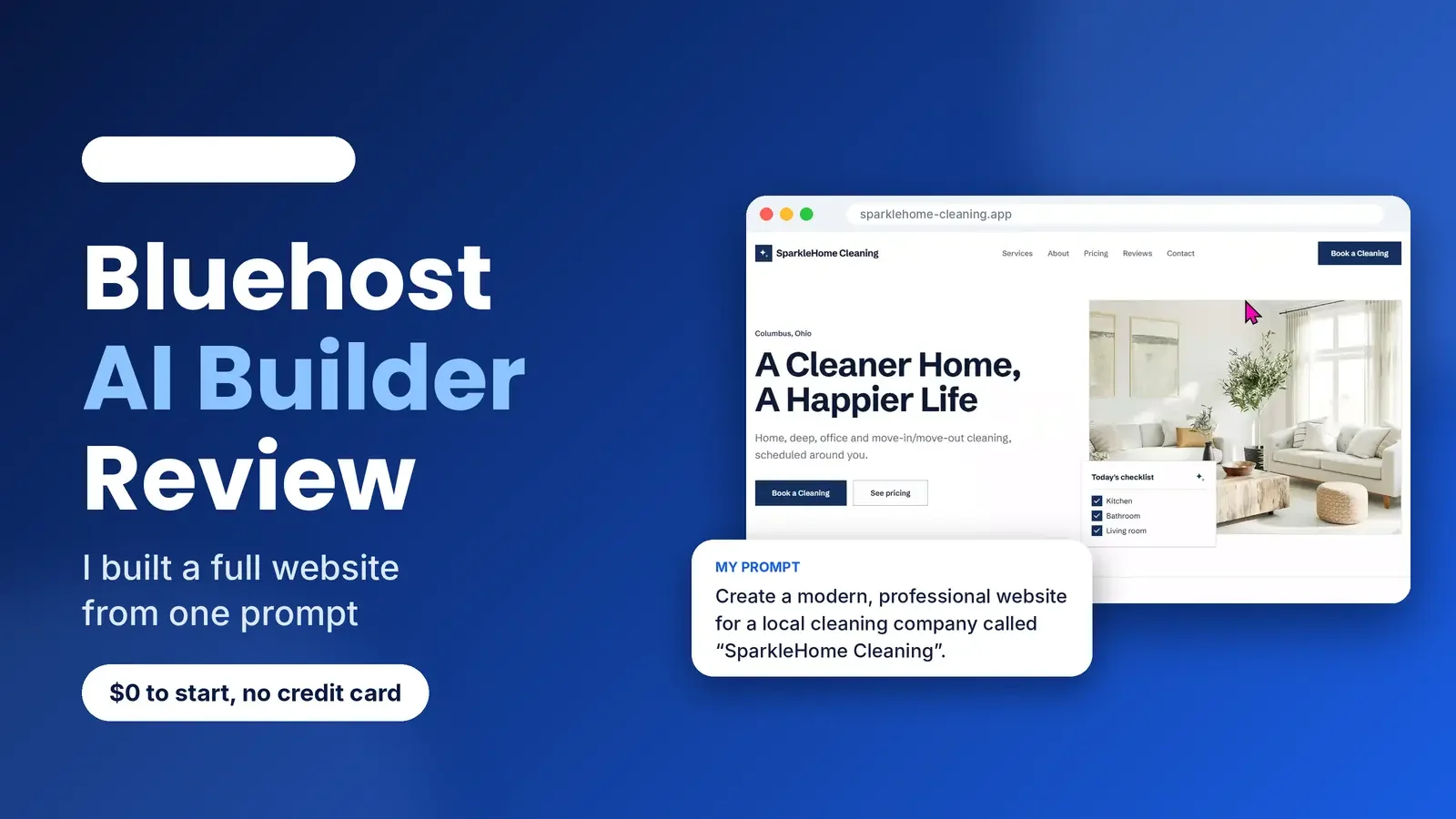
So I built a full website for a made-up cleaning company called SparkleHome Cleaning. In this post I will show you every step with my own screenshots, the good parts, the not-so-good parts, and the pricing and credits in simple words.
Quick Answer (If You Are in a Hurry)
- Bluehost AI Builder makes a website from your description, and you edit it by chatting.
- It is $0 to start, no credit card, and paid plans from $20/mo.
- My first build gave me a 6-page website with a booking form and a contact form, and it used only 1 credit.
- The free plan publishes on a Bluehost subdomain. To connect your own domain, you need a paid plan.
- It is not for selling products online. For that, Bluehost has a different product called Bluehost AI Store.
What Is Bluehost AI Builder?
Bluehost AI Builder is a tool where you describe the website you want in your own words, and the AI builds it for you. After that, you can keep improving it in the same chat, like you are talking to a web designer. No WordPress knowledge needed, no coding.
According to Bluehost, you can build business websites, portfolios, landing pages and blogs with it. Hosting is included on every plan. When I opened the page, I also saw a small "Early Access" tag near the name, so keep in mind that this is a new product and it may keep changing.
My Test: A Website for a Local Cleaning Company
I wanted a real-life example that small business owners can relate to. A local cleaning company is perfect, because it needs services, prices, reviews and a way for customers to book.
Here is the exact prompt I used. You can copy it and change the details for your own business:
Create a modern, professional website for a local cleaning company called "SparkleHome Cleaning".
The company provides home cleaning, deep cleaning, office cleaning, move-in and move-out cleaning services.
Use a fresh and professional colour scheme with white, light blue and navy blue.
Include the following sections: Home, About Us, Our Services, Pricing, Customer Testimonials, Contact Us.
Add a welcoming hero section with the headline "A Cleaner Home, A Happier Life" and a prominent "Book a Cleaning" button.
Display cleaning services in attractive cards with descriptions and sample prices. Include why customers should choose us, customer reviews, contact details and a booking enquiry form.
Use realistic cleaning-related images and make the website fully responsive for desktop, tablet and mobile devices.
Use sample contact information and placeholder business details.
My tip: the more clearly you write the sections, colours and buttons, the closer the first version will be to what you imagined. I gave a proper brief instead of one line, and I think that helped.
Step 1: Type Your Idea and Click "Build for Free"
On the Bluehost AI Builder page, you see a big box that says "Describe it in your own words". You type your idea there. There is also a small option to add your logo, photos or a site you like, so the AI can follow that look.
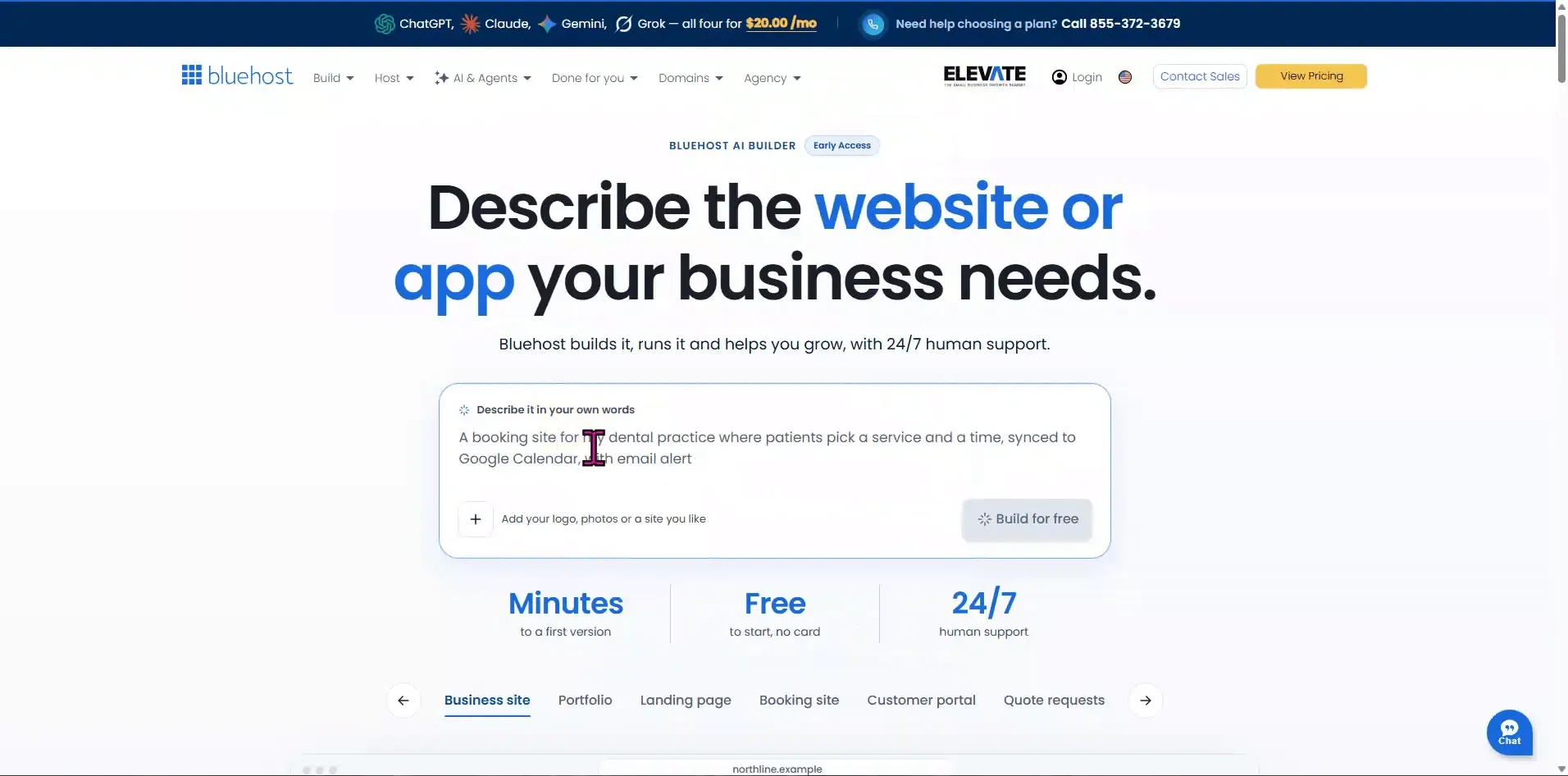
Image 1: Bluehost AI Builder landing page with the prompt box
I pasted my prompt and the "Build for free" button became active.
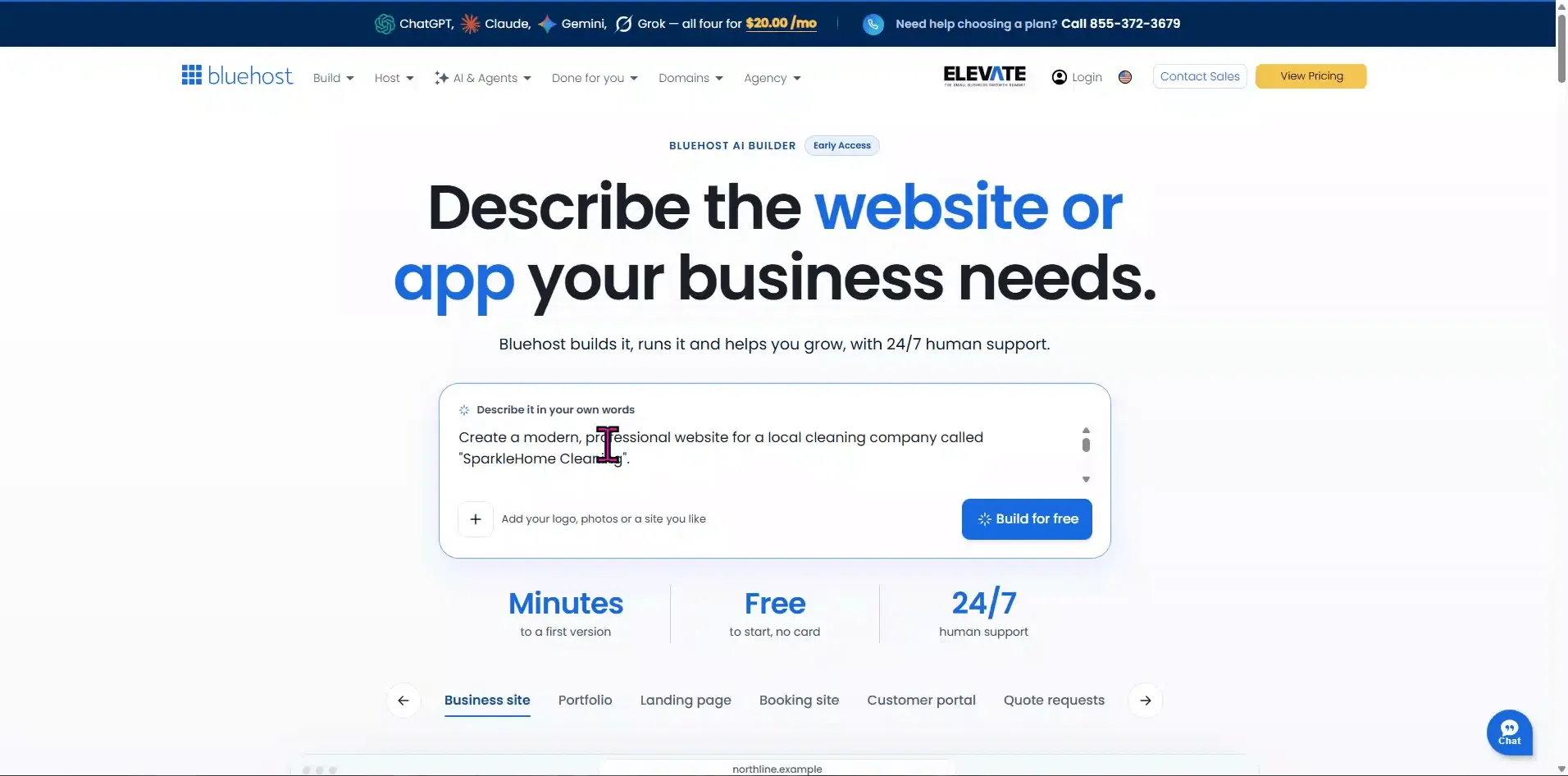
Image 2: my SparkleHome Cleaning prompt typed in the box
Step 2: Create Your Account
After I clicked build, a sign-up box came up. You can continue with Google, Apple, GitHub, or use your name, email and password. Phone number is optional.
The best part: I wasn't asked for credit card details. That matches the promise of "$0 to start, no credit card". If you are someone who gets nervous when a free tool asks for card details, this will make you comfortable.
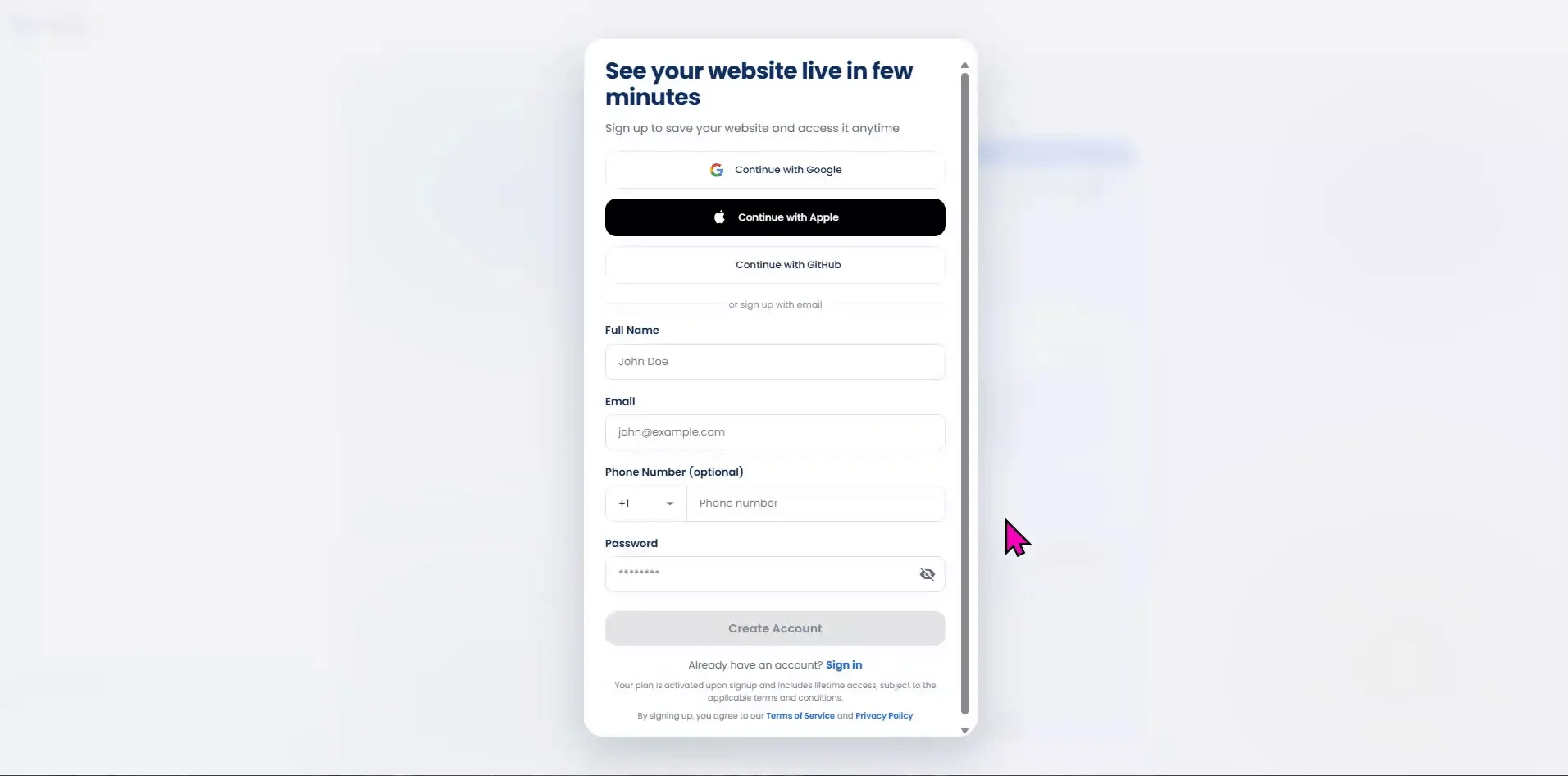
Image 3: sign-up screen
Step 3: Watch It Build
Now the AI starts working. I could see my full prompt on the left side, and on the right side a message "Understanding your business... This can take up to a minute."
I also noticed the credits counter at the bottom: 5 credits left before the build started.
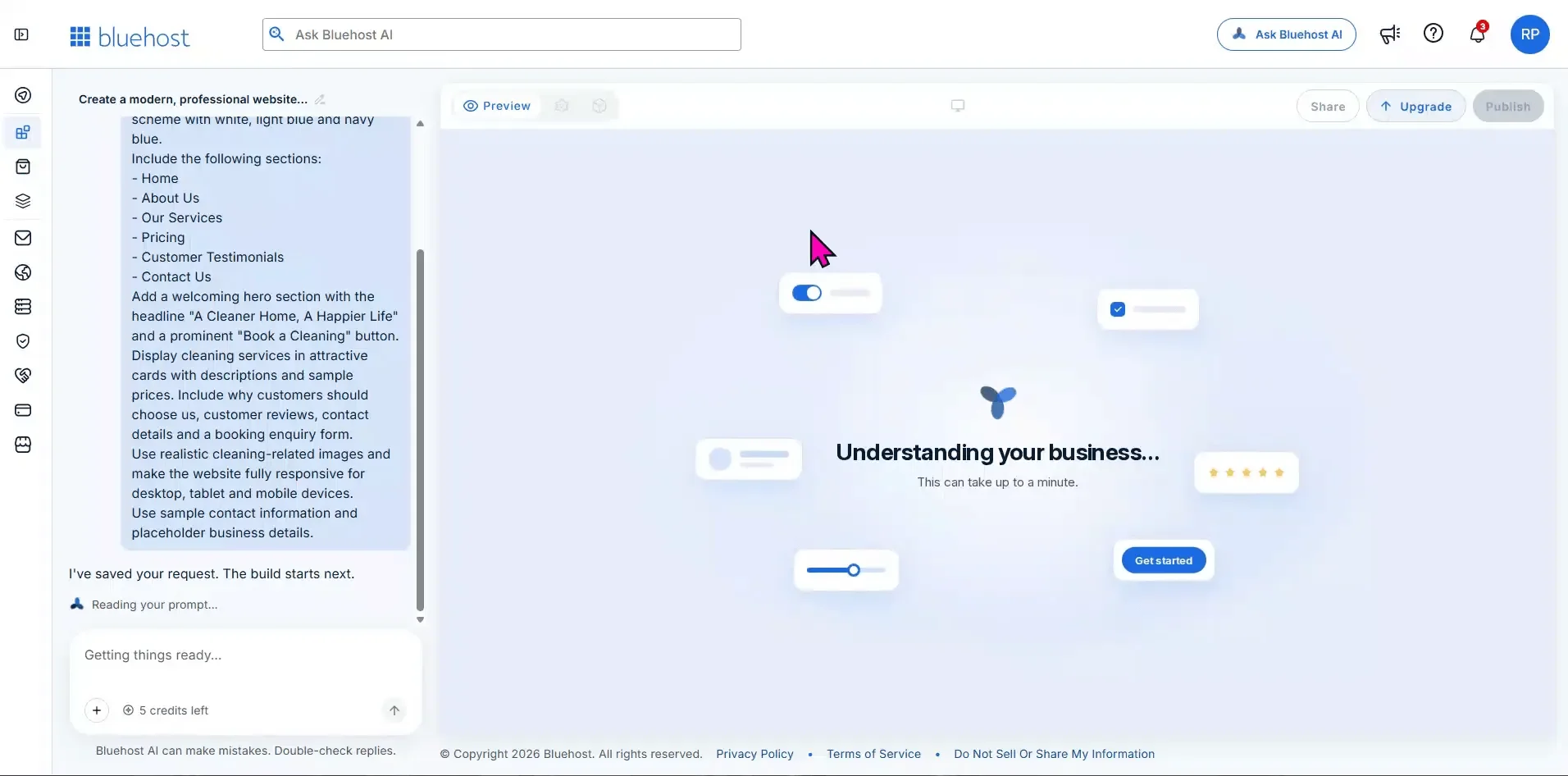
Image 4: build in progress with "5 credits left"
Step 4: The First Version Was Ready
Then came the message "Your app is ready". The AI told me the site has 6 pages, a booking enquiry form and a contact form, in a navy, light blue and white look. It also said clearly that the address, phone, hours and customer reviews are samples and I should replace them. I liked this honesty.
Check the credits again: now it shows 4 credits left. So my whole first build, from one prompt to a complete website, used just 1 credit. From clicking Build to seeing the ready message took me about 3 minutes.
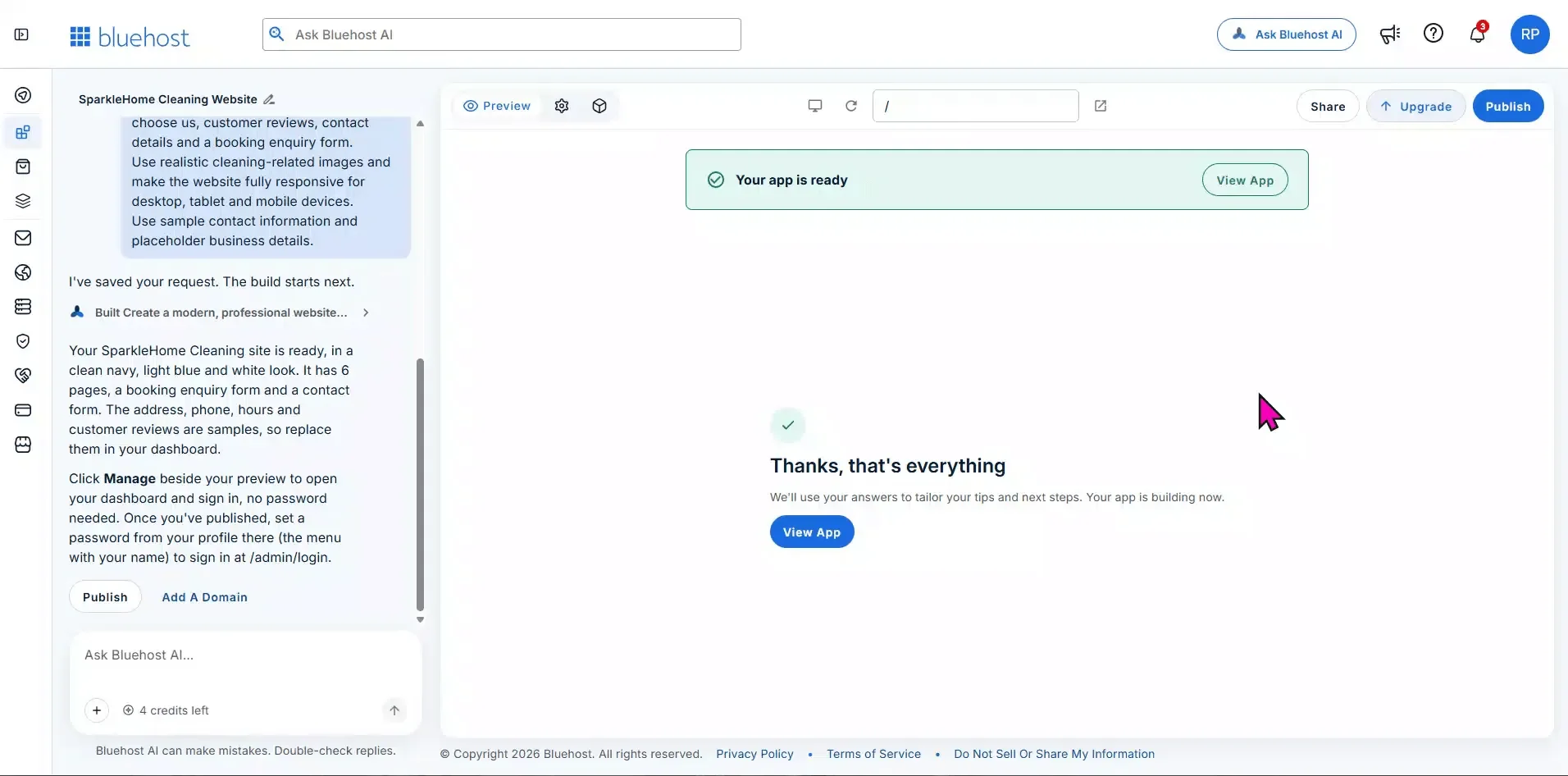
Image 5: Your app is ready with 4 credits left
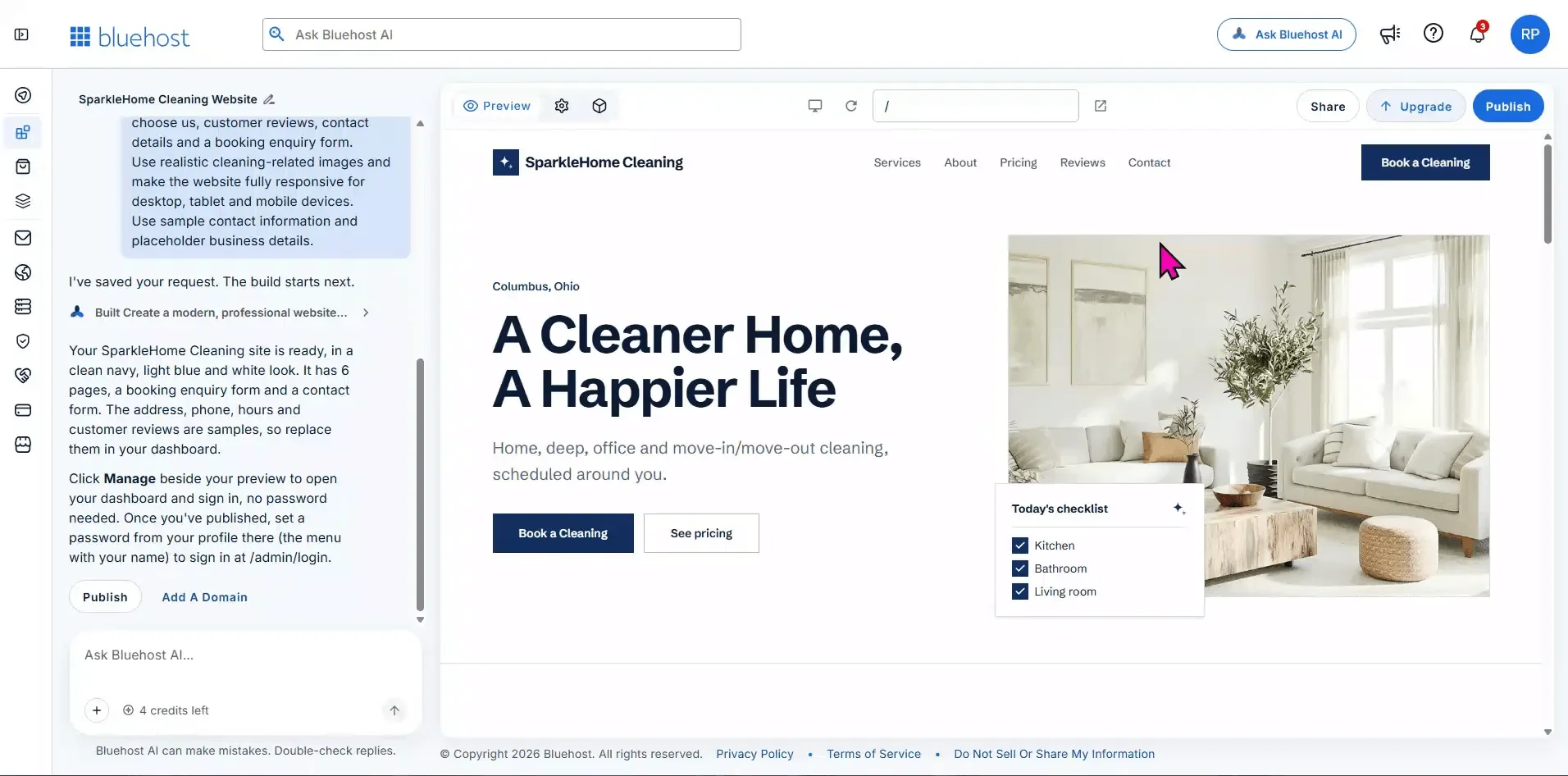
Image 6: first preview of the website inside the builder
Bluehost says that when your idea needs more detail, the AI can ask clarifying questions, and those questions are free. While my site was being built, it also showed me a few quick questions to tailor tips and next steps.
What the Website Actually Looked Like
Here is the part you are waiting for. I opened my live website and honestly, the first version looked clean and professional. The hero section had exactly my headline, "A Cleaner Home, A Happier Life", with the "Book a Cleaning" and "See pricing" buttons, a nice living room photo and a small "Today's checklist" card. The navy and light blue colours were exactly what I asked for.
The live demo is here if you want to see it yourself: https://app-80418.dcae3.app.bluehost.ai/
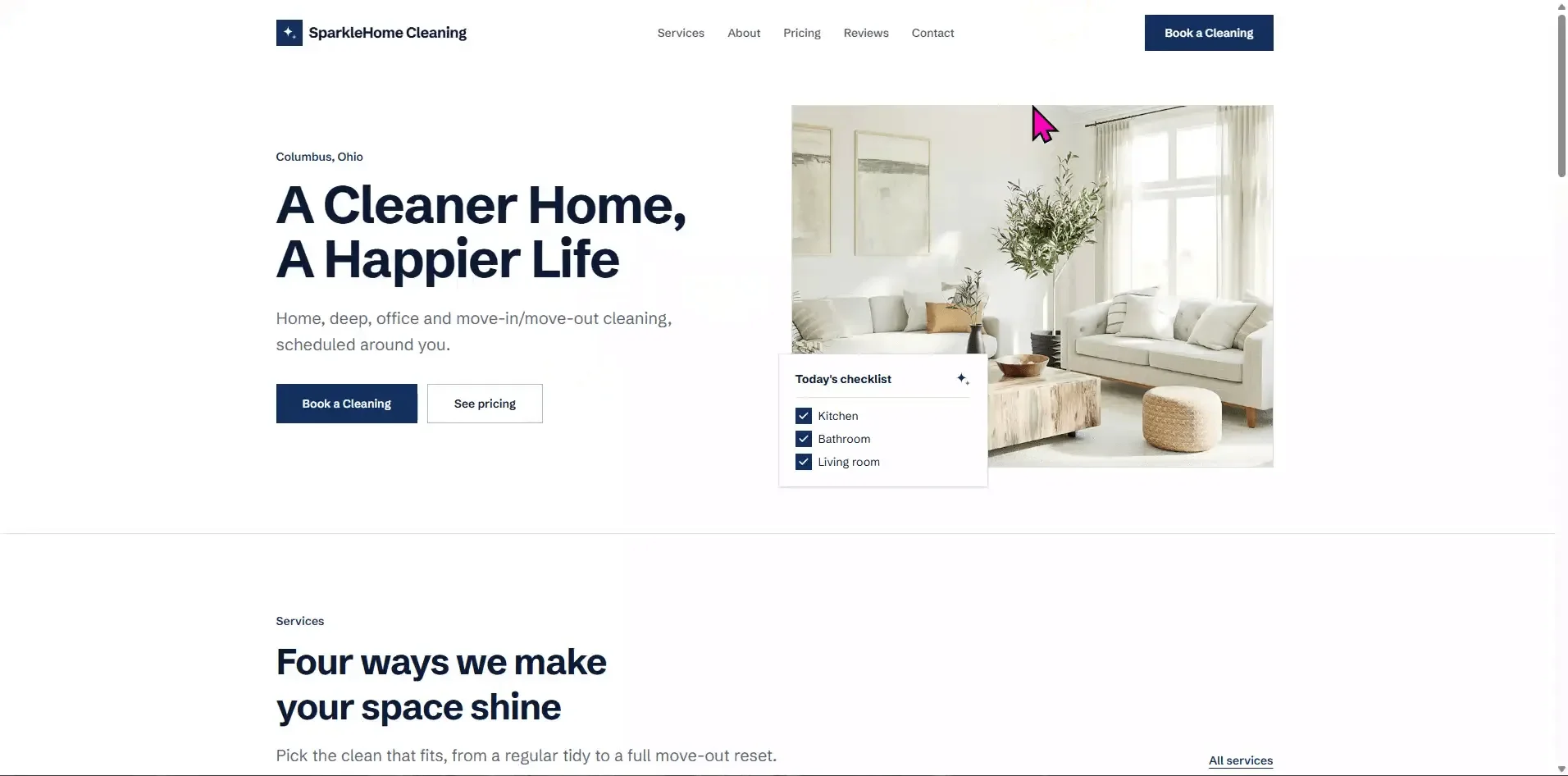
Image 7: live website homepage
The pricing page also came with three plans: Essential Clean, Complete Home and Deep Reset, with the heading "Clear prices, no surprises". Each plan had its own feature list and a booking button.
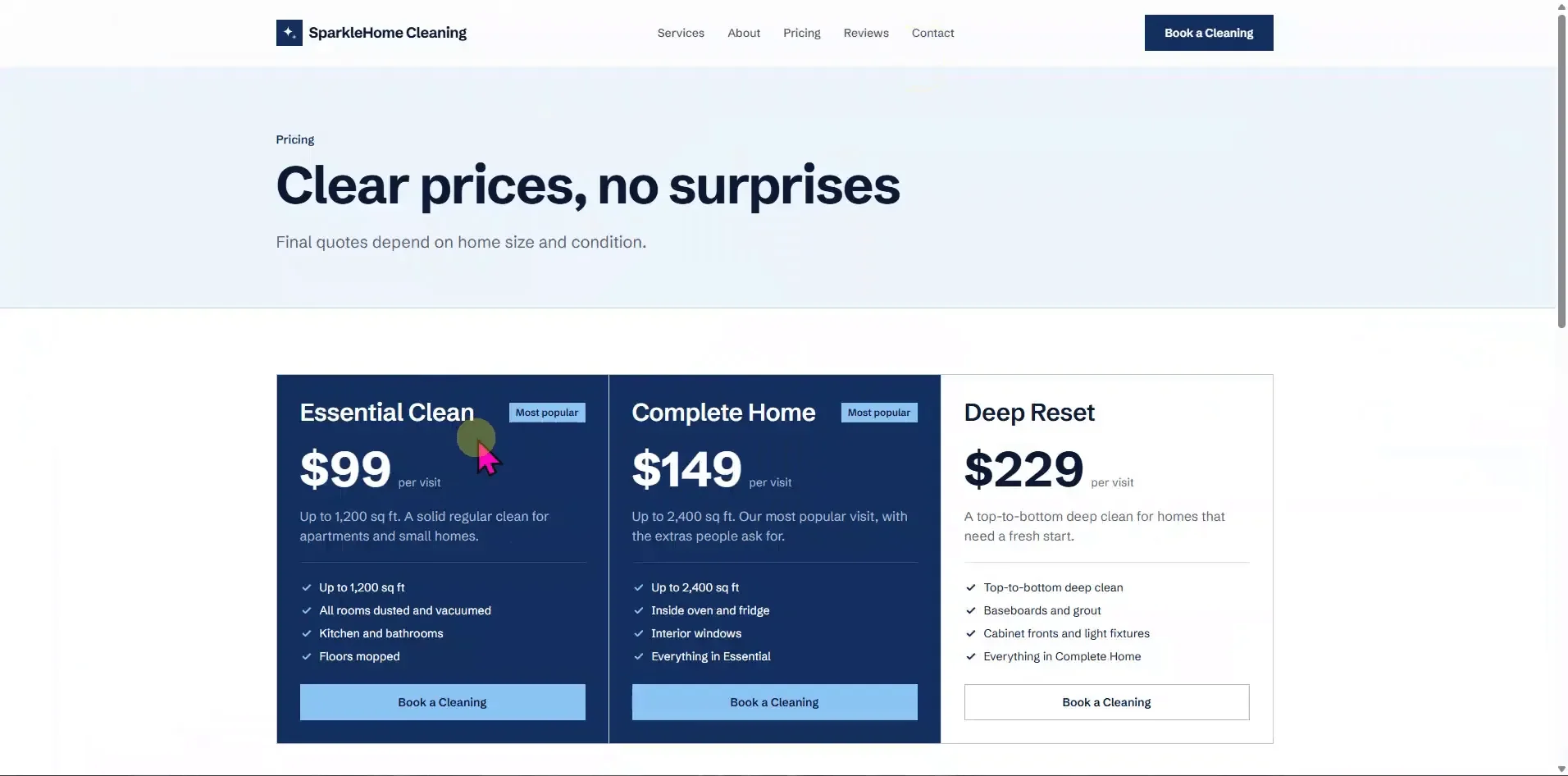
Image 8: live pricing page
Editing: The Dashboard Was a Pleasant Surprise
I did not expect this much. The AI also made a dashboard for the website. Inside the builder you click "Manage" and the dashboard opens, with no password needed at the start. After you publish, you can set a password from your profile and log in at /admin/login.
In the left menu I could see: Dashboard, Users, Enquiries, Services, Pricing Plans, Reviews, Messages, Business details and Secrets. So basically, it is not just a pretty front page. You get a place to manage your content.
I opened Pricing Plans and edited one plan. I could change the name, price, unit, description and features in a simple form. I changed the Essential Clean price and the website updated.
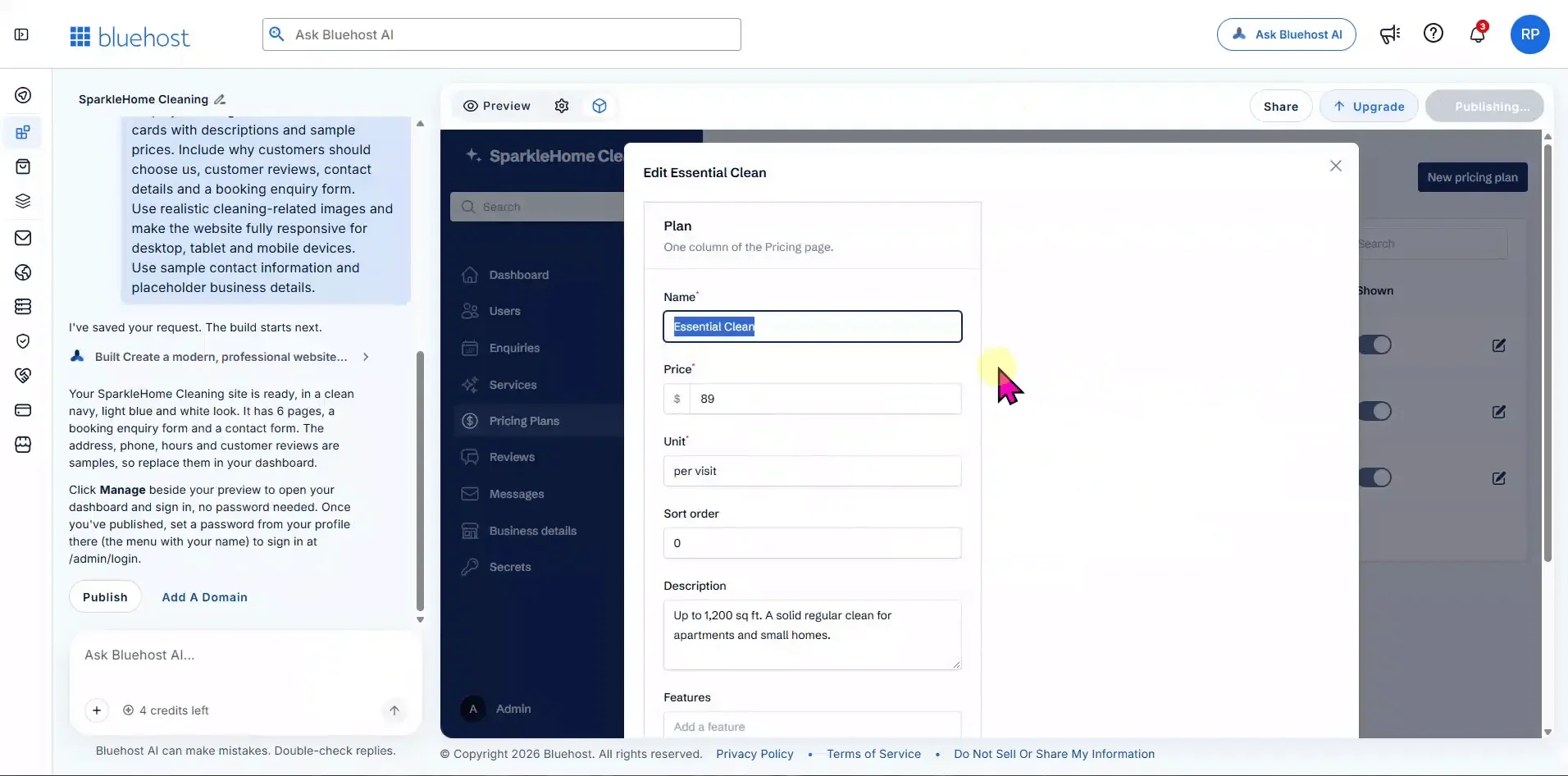
Image 9: editing the Essential Clean plan in the dashboard
Editing by Chat
The dashboard is for content, but the main promise of Bluehost AI Builder is editing by chat. So I tested that too, with one simple message in the chat box:
Change the Book a Cleaning button to light green
The AI replied that it had asked the builder to change the "Book a Cleaning" button to light green throughout the site, and that the update was now building. I did not open any setting or touch any code.
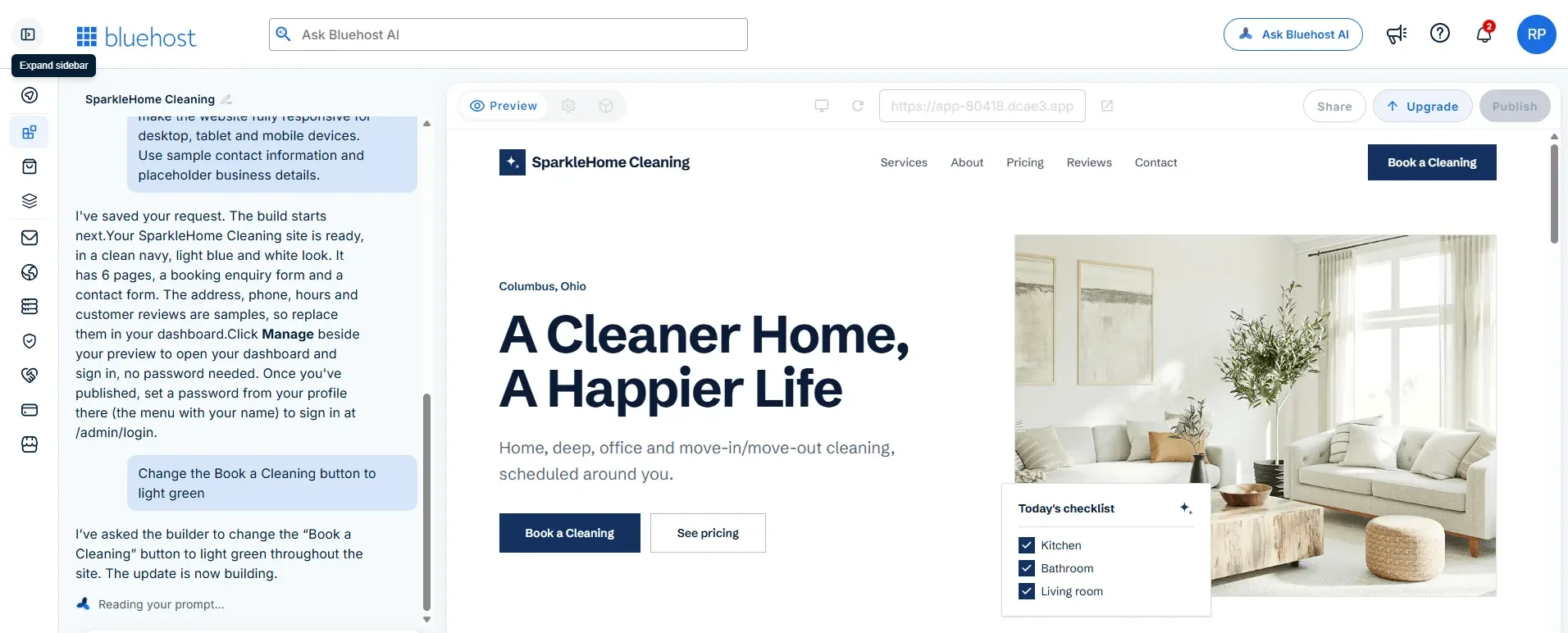
Image 10: my chat message and the AI's reply
When the update finished, the "Book a Cleaning" button in the top menu and the one in the hero section were both light green. The "See pricing" button stayed the same, which is correct because I only asked for one button. The dark navy text is still easy to read on the light green.
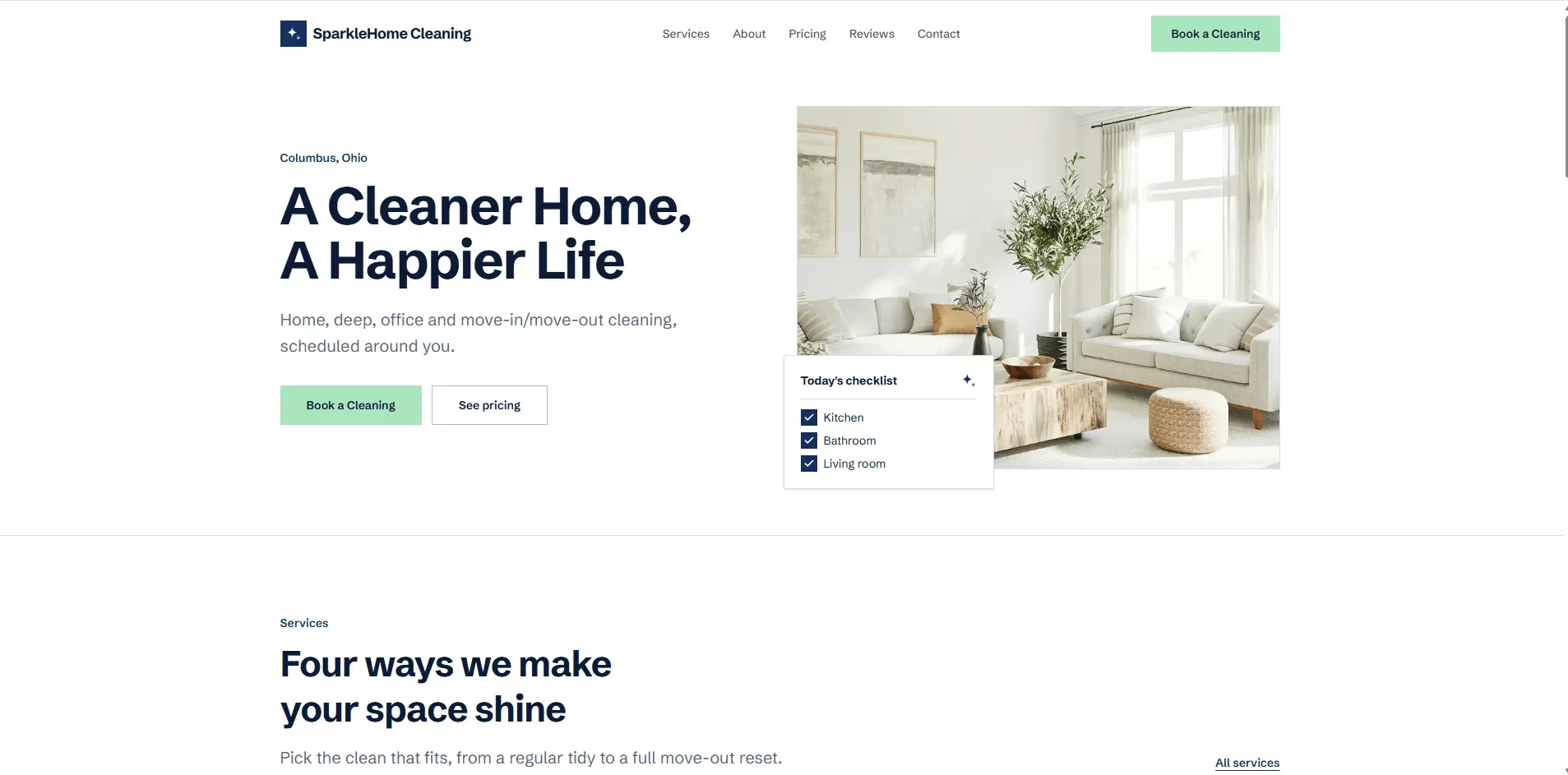
Image 11: homepage after the chat edit, with light green buttons
My honest notes on this edit:
- It worked in plain English on the first try, with no rephrasing.
- I only said "light green", so the AI chose the exact shade. If you want a specific colour, write it clearly in your message.
- The AI said it changed the button throughout the site.
Does the Booking Form Really Work?
I hate it when a tool shows a beautiful form that does nothing. So I tested it. I went to the contact section, filled in a test name, a test email and a message "booking contact test", and clicked send.
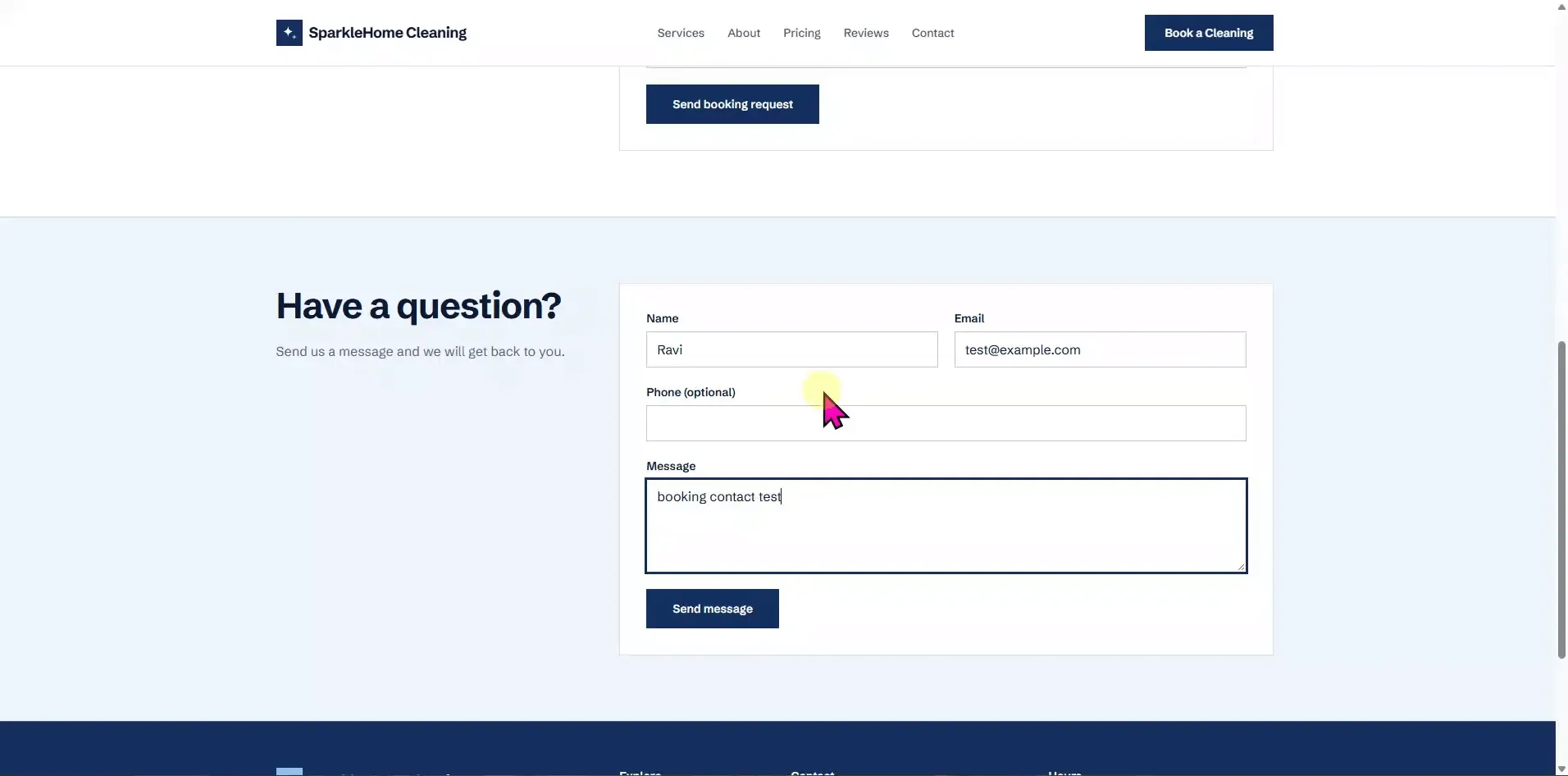
Image 12: filling the contact form
I immediately got a message saying "Thanks, your message is on its way. We will reply soon."
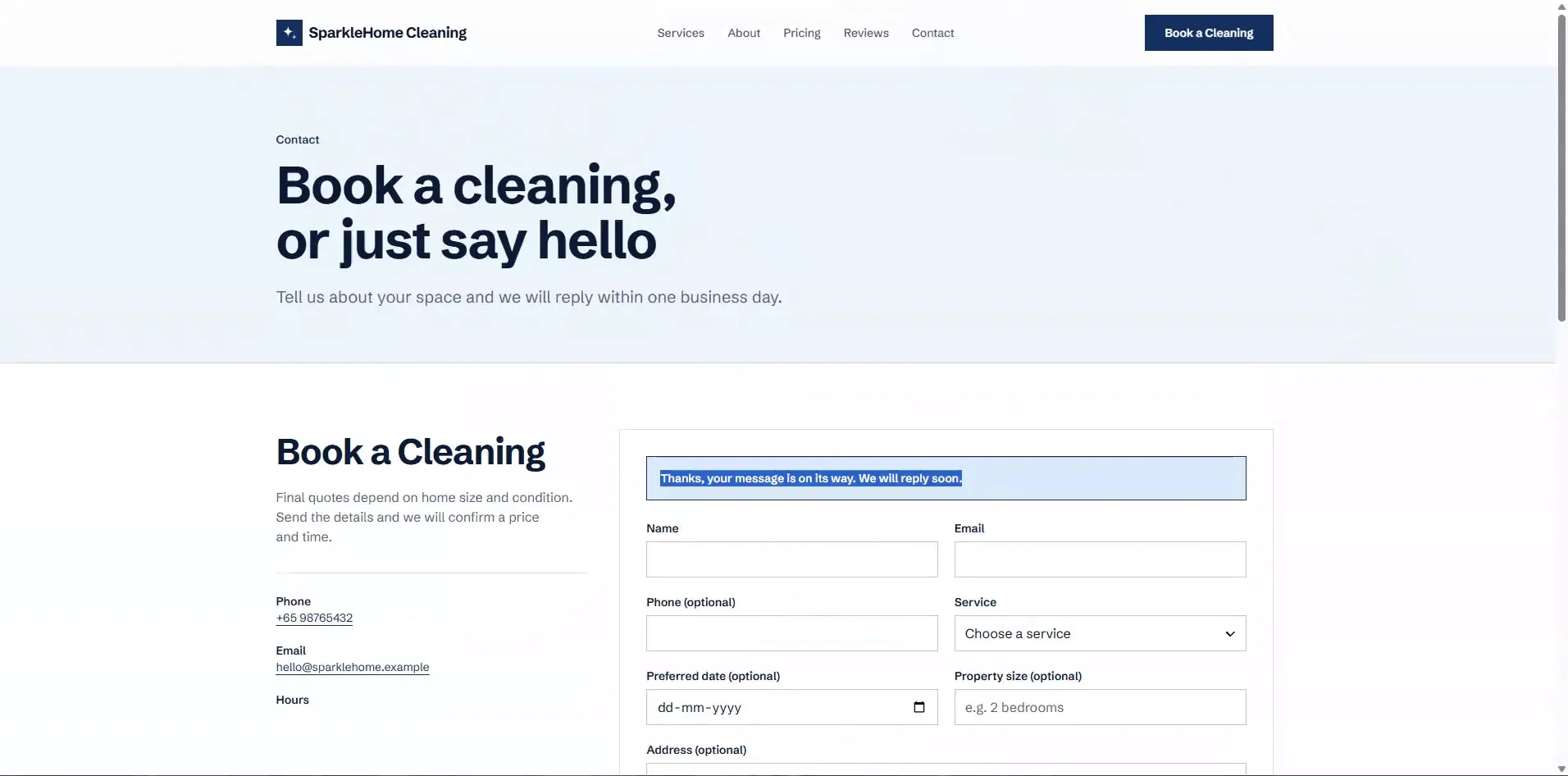
Image 13: success message on the contact page
Then I went to the dashboard, opened Messages, and my test message was already sitting there, received just a few seconds ago, with the name, email and message. The AI had also added a few sample enquiries, like a customer asking if the cleaners bring their own supplies and vacuum. For a small business owner, this is very useful, because you can see all enquiries in one place.
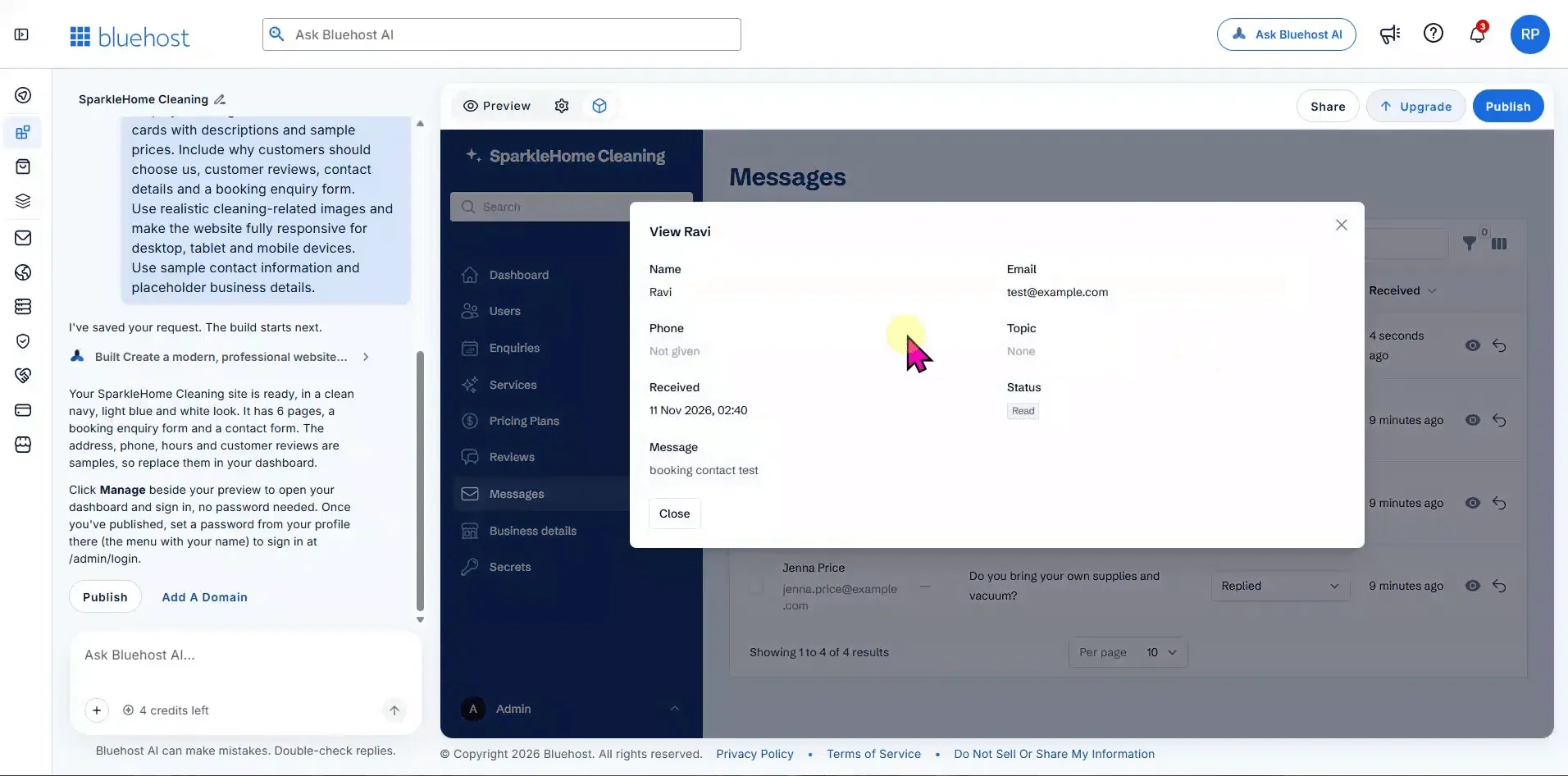
Image 14: test message in the dashboard Messages section
Publishing and Domain: What You Should Know
The builder has a Publish button at the top, and also "Add A Domain" in the chat. Here is how it works, as Bluehost says:
- Free plan: your site goes live on a Bluehost subdomain. I published my demo this way.
- Own domain: connecting your own domain needs a paid plan, starting with Lite at $20/mo. I did not test this part because I stayed on the free plan.
- Hosting: included on every plan, and it never uses credits.
One more thing that I liked: if your credits finish, only new changes pause. Your published website stays online. So no tension about your site going down because credits are over.
Bluehost AI Builder Pricing and Credits
It is $0 to start, no credit card, and paid plans from $20/mo. Here are the plans:
Plan | Price | Credits |
|---|---|---|
AI Builder Free | $0, no credit card | 5 a day, up to 30 a month |
AI Builder Lite | $20/mo | 100 a month |
AI Builder Standard | $40/mo | 200 a month |
AI Builder Pro | $80/mo | 400 a month |
How credits work, in simple words:
- One message you send to the AI uses one credit.
- The AI's clarifying questions are free.
- Monthly credits and top-ups expire after 30 days.
- Top-ups come in packs of 50, 100 or 200 credits, starting from $15.
- Paid plans are billed monthly, and prices are in US dollars.
Since I started with 5 credits and my first full build used 1, on the free plan it is smart to plan your edits. Write clear messages instead of sending many small ones. Prices and plans can change, so please check the latest on the official page before you buy: Bluehost AI Builder (affiliate link, I earn a commission).
What I Liked
- One prompt gave a complete website. Six pages, forms, pricing, reviews, all in one go.
- No credit card needed. I could try everything without any tension.
- It follows your instructions. My headline, colours and button text came exactly as I wrote.
- The dashboard. Enquiries, services, pricing and reviews can be managed in a proper admin area.
- The form works. My test message reached the dashboard in seconds.
- Clear about samples. The AI told me which details are placeholders.
Who Should Use Bluehost AI Builder?
Good for:
- Small business owners like cleaners, tutors, salons, clinics and freelancers who need a website fast
- Beginners who have never made a website
- People who want to test an idea before spending money
- Anyone who wants a booking or enquiry form without coding
Maybe not for:
- People who want to sell products online
- Developers who want full control over every line of code
- Anyone who needs a very big, custom website on day one
What Could Be Better
- Sample details need replacing. The AI chose Columbus, Ohio as the location and used USD prices. A real business must change all of this.
- Free plan limits. With 5 credits a day, you can’t make endless changes in one sitting, and your own domain needs a paid plan.
- It is new. The page shows an “Early Access” tag, so things may change.
- I tested mostly on desktop. Please check tablet and mobile views before publishing.
- Not for online stores. For selling products, look at Bluehost AI Store.
My Honest Verdict
I went in expecting a basic template. What I got was a clean six-page website, a working enquiry form and a dashboard, from one prompt and one credit. For a small business owner who wants to get online quickly, that is genuinely impressive, and since it is $0 to start, no credit card, you can explore the free plan before deciding whether a paid plan is right for you.
While the initial website generation was impressive, you should still review every page, replace placeholder information, test your forms and plan your AI credits carefully. The free plan is useful for experimenting, but businesses wanting their own domain will need a paid plan.
Frequently Asked Questions
Is Bluehost AI Builder free? You can start free: $0 to start, no credit card. If you need more, there are paid plans from $20/mo.
Do I need coding knowledge? No. You describe your website in simple words and edit it by chatting.
Can I publish a website on the free plan? Yes. The free plan publishes on a Bluehost subdomain.
Can I use my own domain? Yes, but you need a paid plan. Lite at $20/mo is the starting plan for this.
What happens when my credits finish? Only new changes pause until your credits refresh or you top up. Your published website stays online.
Does hosting use credits? No. Hosting is included on every plan and never uses credits.
Can I sell products with it? Not at the moment. For online stores, check Bluehost AI Store.
Try It Yourself
The best way to know if it suits you is to build something small. Copy my prompt above, change the business name and details, and see what comes out. It costs nothing to try.
Try Bluehost AI Builder here (affiliate link, I earn a commission)
Disclosure: This article is sponsored by Bluehost. I earn a commission if you purchase through my links. All screenshots and opinions are from my own testing.